Updated  Wednesday, May 06, 2026
Automated Data Product Factory enables you to define and create data products without learning modeling tools or writing technical specifications.
It delivers a streamlined, intelligent, and efficient approach to creating accurate and reusable logical models.
When you enter a prompt in the natural language chat interface, the AI agent analyzes what you are trying to accomplish, identifies the required entities, and checks whether an existing logical data product can meet your requirements.
If a match meets the defined threshold, the AI agent recommends the existing data product for reuse.
If no suitable match is found, the AI agent creates a new logical model through the following steps:
-
Searches for semantically relevant entities and attributes from enterprise logical models and metadata
-
Identifies gaps by applying AI‑based reasoning and using physical metadata as contextual information
-
Applies industry‑standard logical models when internal context is incomplete
-
Generates an AI‑derived logical model
After creating a logical model, you can view the Entity Matches and either accept the recommended match or select another one based on your methodology or business rules. You can also export the versions of your model to an integrated system, such as erwin Mart Portal on cloud for collaboration.
After you finalize the model, publish it to the Data Marketplace for further use. Once published, you can also view the mindmap in the Automated Data Product Factory interface.
User interface
From the Quest Trusted Data Management Platform home page, open the Product menu from the side navigation bar. The menu expands into a sub‑menu where you can choose to create a new data product or review the existing ones.
When you select New data product, a page with a chat box opens where you enter a prompt describing the data product model you want to create. Once you submit your prompt, it takes you to the model creation workspace.
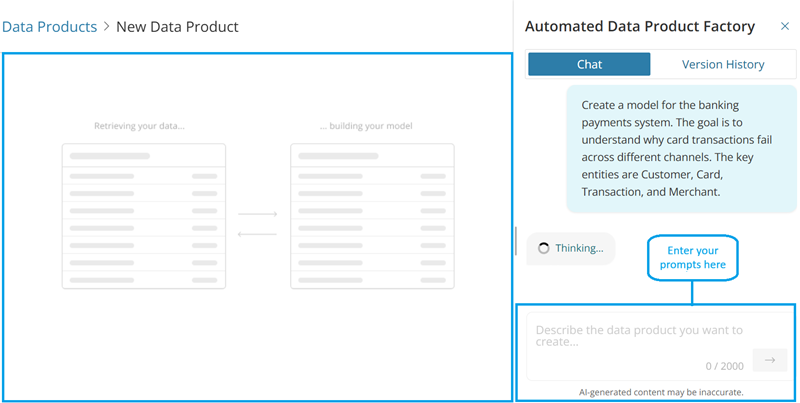
The page consists of two main sections:
-
Chat panel: Located on the right, where you enter prompts and receive responses from the AI agent.
-
Diagram canvas: Visual Workspace located on the left, where you review models.
Key features
The module includes several key features to support the complete process of building and managing your data product models, including:
Point to the thumbnail to preview the features.
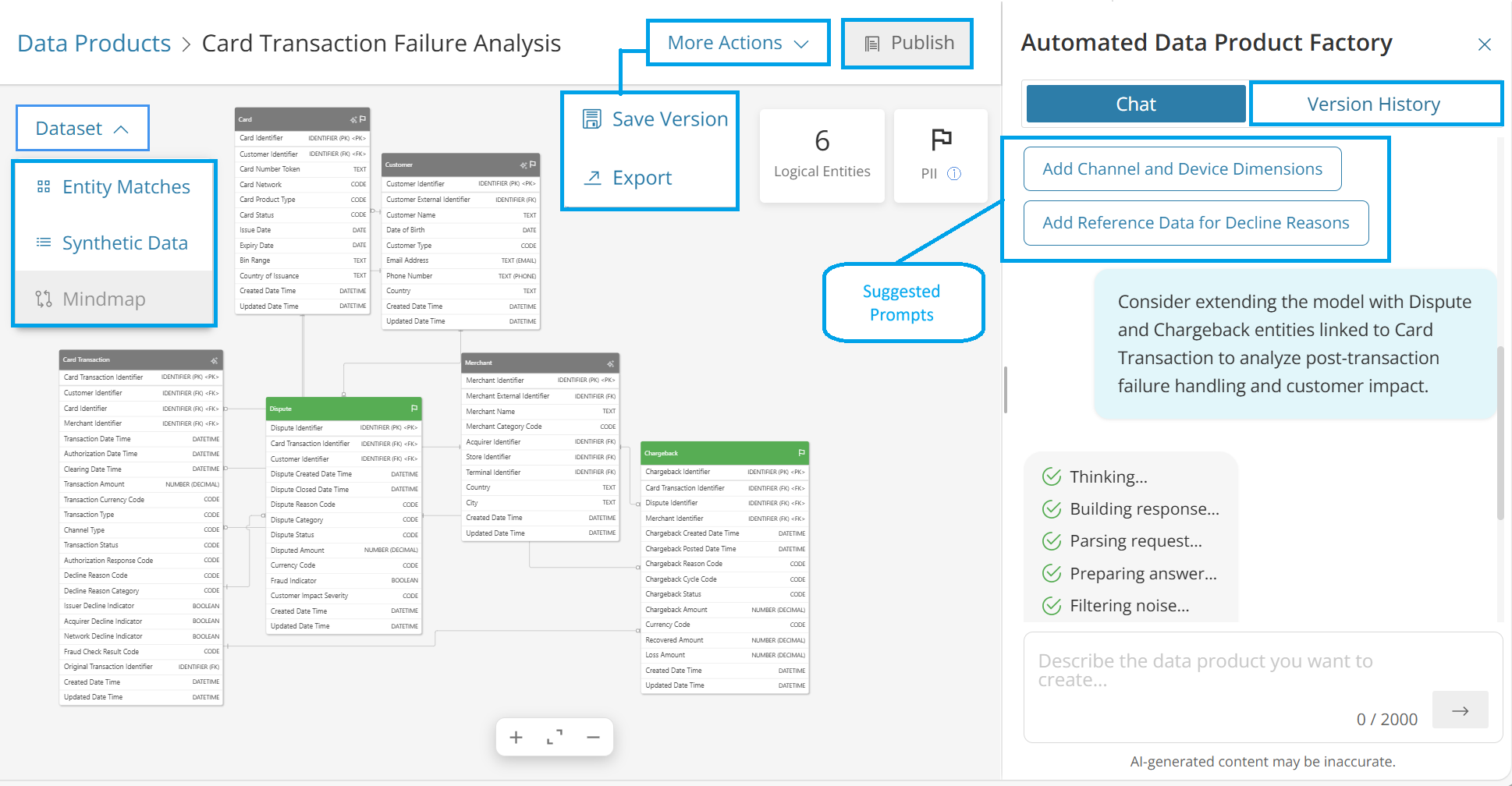
The sections below provide more detail on each feature.
AI-powered modeling workflows
Automated Data Product Factory streamlines the creation and refinement of logical models by combining natural language understanding with the module’s connected Data Modeling and Data Intelligence systems.
To support this experience, logical entities and attributes from enterprise data models, along with curated metadata from operational systems such as CRM, billing, and ticketing applications, are vectorized to enable semantic reasoning. This process allows the system to interpret model structures, identify relationships, and understand the context of your data.
Together, these capabilities enable AI to assist in designing, extending, and validating logical models with greater accuracy and efficiency, whether the workflow builds on existing data structures or starts from a new model.
This feature works through two main components:
-
Chat panel: Accepts natural language instructions and provides explanatory responses.
-
Data model canvas: Displays the entities, attributes, relationships, and structural changes generated by your prompts. It includes model diagrams and options such as Datasets and More Actions.
For information on creating models, refer to the Creating Data Product Models topic.
Dataset Options
Dataset Options provide two key capabilities, Entity Matches and Synthetic Data, that help you understand and validate how data is being interpreted and used within the data product model. These options offer insight into how the system aligns existing data sources with your model design.
Entity Matches
When you use the Entity Matches option, the system begins analyzing all information stored in the data catalog. It compares what is known about the databases, tables, and fields in your catalog with the entities defined in your data product model and displays the following:
-
Each entity with its top physical table matches
-
Percentage match scores for each match
-
Column-level mappings that show which logical attributes correspond to which physical columns
-
Data types for validation
-
Type that specifies whether the result is matched or AI‑generated
How it works
-
Scans the data catalog and compares metadata from databases, tables, and fields with each entity in your model
-
Searches strategically by evaluating data products first, then expanding to all catalog tables
-
Prioritizes high-quality, authorized, production data
-
Matches entities to physical tables and columns
-
Calculates percentage match scores based on column coverage and structural alignment
-
Recommends the highest‑scoring table, and provides complete mapping results validation
What you can do
Although the system recommends the top match:
-
You can review all matches, including those with lower scores.
-
You may manually choose a different table according to your methodology, business rules, or domain.
This gives you both automation (to speed up modeling) and flexibility (to remain in control).
For information on using Entity Matches, refer to the Matching entities section.
Synthetic Data
The Synthetic Data option enables you to generate an example dataset that represents what the model’s data would look like once populated.
How it works
The system generates a table‑formatted sample dataset, where:
-
Each row contains mock field values derived from the related data sources.
-
The sample shows how data might look in the real model. This is especially useful during design and demonstration phases.
What you can do
-
You can validate the model structure.
-
You can review sample data safely, without exposing sensitive or restricted information.
-
Use example values for testing data flows, visualizations, or downstream processes.
The Entity Matches and Synthetic Data options work together to help you understand how your modeled entities correspond to real data sources.
More Actions
The More Actions menu provides controls that help you manage your model’s lifecycle, from preserving work states to sharing outputs and making the model available for use. These actions ensure that you can maintain version integrity, collaborate with others, and prepare your model for deployment.
Save Version
The Save Version option enables you to preserve a snapshot of your model at a specific moment in time. This helps you track progress and ensures that important milestones are never lost.
How it works
-
When you save a version, it appears in your version history.
-
You can select and restore any saved version at any point.
-
Meanwhile, your draft progress is also auto‑saved. This means you can resume from where you left off, even after disruptions.
What you can do
-
You can refine the model; you may try multiple configurations or experimental changes.
-
Return to an earlier state if you decide not to keep later modifications.
-
It provides a controlled and safe way to iterate without fear of losing good work.
This combination of manual versioning and auto‑saving ensures both flexibility and safety during editing.
Export
The Export option enables you to create a packaged version of your model that can be used outside the current environment.
How it works
-
You can export a created or updated logical model to an application, such as erwin Mart Portal on cloud.
-
When exporting, confirm that objects are created as intended by reviewing details such as the model name, version number, date of creation, last revision date, and so on.
-
Exported models are stored in a defined Automated Data Product Factory folder within erwin Mart Portal on cloud to maintain clarity, traceability, and consistent organization.
How it helps
-
Enables collaboration with team members who may need to review or contribute to the model
-
Supports scenarios where the model must be shared, migrated, or integrated with other systems
-
Ensures your work is not locked into one environment, promoting portability and broader use
Publish
Publishing finalizes your model by making it available for use in downstream systems. While the specific output depends on your platform, the conceptual purpose remains the same.
When you publish, the model is saved, exported, and published a data product to the Data Marketplace.
After the model is published to the Data Marketplace, a mindmap is generated and pulled into the Automated Data Product Factory, where it can be viewed.
How it helps
-
Publishing transitions your model from a work‑in‑progress to a ready‑for‑use asset.
-
It enables consumers such as analysts, developers, or applications to interact with the model.
-
It reflects that your model has passed review, refinement, and validation stages.
The latest stable version of your model is packaged and released. The connected systems can start referencing the published model.
For more information, refer to the Publishing section.